
🚀 How to Download the Spark Libraries
Follow these simple steps to download and prepare the Spark library files for your project.
📥 Step 1: Download the Files
Click the links below to download each library file:
Make sure all the files are saved to your computer.
📁 Step 2: Find the Downloaded Files
Once downloaded, go to your Downloads folder to check if the files are there.
🔎 Tip: Make sure the path is correct so you don’t lose track of them.
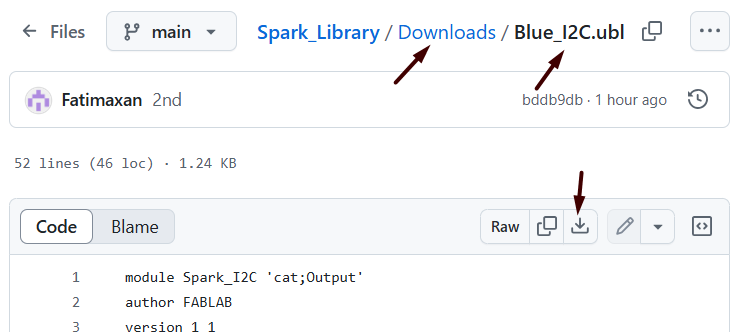
💡 Another Way to Download
Some systems may offer a different way to download the files, like this:

If that happens, just follow the prompts and confirm the download.
🗃️ Extract and Organize
If the files come in a compressed folder (ZIP), right-click the folder and choose "Extract All".
Then, move the extracted files to your main Downloads folder for easy access.
🌐 Step 3: Open MicroBlocks
Click here to open the MicroBlocks Pilot version in your browser.
📚 Step 4: Add the Libraries in MicroBlocks
In MicroBlocks:
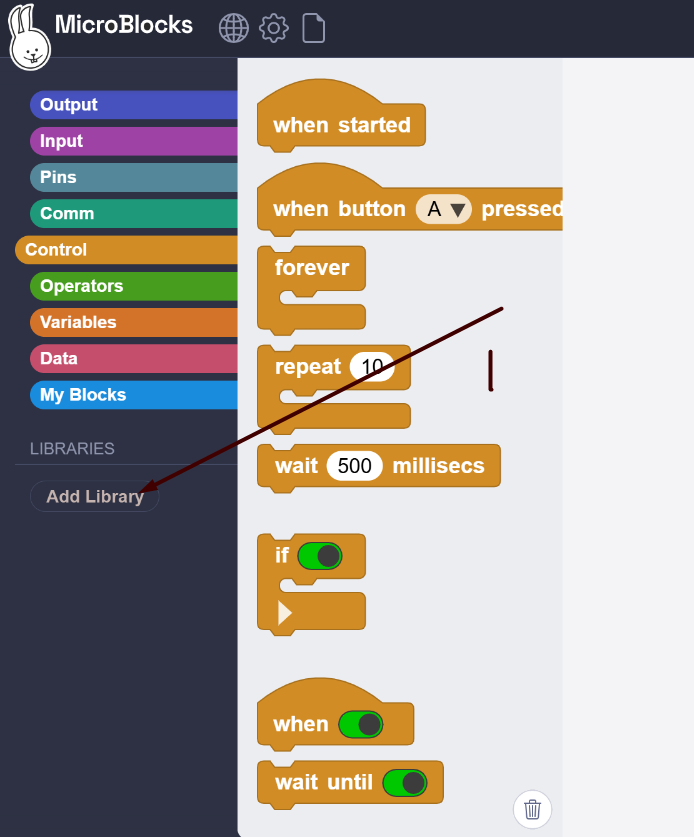
- Click on "Add Library" (usually at the bottom of the block categories).
- A file browser will open.
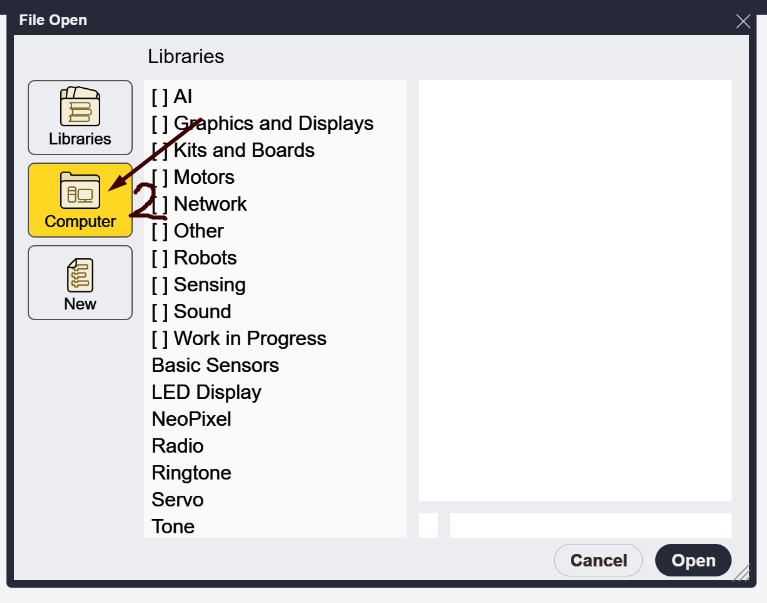
- Choose the
.ublfiles you downloaded earlier (you can add them one by one).

Once added, the blocks from those libraries will appear and be ready to use!